

Start with the outlet and the original charger. Plug straight into a wall socket you know works, use the factory adapter, and watch the charging LED for two or three minutes. If the icon still reads "plugged in, not charging" after that, the fix likely sits deeper than the cable. Work through the checklist below in order, from external power inward to the battery itself, before you touch a screwdriver or call a repair shop.
TL;DR:
- External power issues are the most common cause, so testing different outlets and inspecting the adapter LED are critical first steps.
- Cable damage, adapter warmth, port corrosion, or faulty power negotiation in USB-C can prevent charging, even if the hardware appears intact.
- Windows driver conflicts often cause charging errors; reinstalling the battery and AC adapter drivers from Device Manager resolves many cases.
- Firmware recognition issues, such as a missing or weak battery in BIOS, indicate hardware failure that software fixes cannot repair.
- Heavy workloads or heat can temporarily pause charging, so cooling the device and reducing resource use may resolve the problem without hardware intervention.
Table of Contents
- Laptop Battery Not Charging: A Fast 5-Minute Checklist
- How Do You Check the Cable, Charger, and Port?
- Fixing Charging Through Windows Device Manager
- What Do BIOS and OEM Battery Diagnostics Tell You?
- How Do You Read a Battery Health Report?
- Can Heat or Heavy Use Stop Charging?
- When Should You Repair or Replace the Battery?
- What Do Most Guides Get Wrong About This Problem?
- Get Your Laptop Charging Again With Akkuplus
- Sources
Laptop Battery Not Charging: A Fast 5-Minute Checklist
Before you open Device Manager or dig into firmware, run these quick checks. Most "plugged in, not charging" cases trace back to something outside the laptop entirely.
- Swap outlets. Try a different wall socket, not a power strip or USB hub, to rule out a dead circuit.
- Watch the adapter LED. No light means a dead brick or a bad wall connection.
- Inspect the cable and brick. Look for fraying, kinks, or a warm-to-the-touch adapter, and try a known-good OEM charger if you have one.
- Try every charging port. Some laptops have two USB-C ports but only one accepts power delivery.
- Power cycle the laptop. Shut down completely, remove the battery if it's removable, hold the power button for 30 seconds, then reconnect and boot.
- Give a dead battery time. A deeply discharged pack can take 15 to 30 minutes plugged in before the circuit wakes up and registers.
- Check your workload. Close anything hammering the CPU or GPU; heavy tasks can outpace what the adapter delivers.
- Feel the chassis. A hot laptop may be pausing charging on purpose until it cools.
If none of that budges the charging icon, move on to the hardware inspection below.
How Do You Check the Cable, Charger, and Port?
A dead charge often has nothing to do with the battery itself. The cable, the adapter, or the port pins fail more often than people expect, and each leaves visible clues if you know where to look.
- Frayed insulation near either end of the cable, especially close to the connector.
- A brick that feels noticeably warm or makes a faint buzzing sound under load.
- Bent, corroded, or recessed pins inside the charging port, visible with a flashlight.
- A warped or cracked adapter housing, which usually means internal component failure.
Plug the adapter directly into a wall outlet rather than a power strip, surge protector, or USB hub. Those add resistance and voltage drop that a laptop's charging circuit can misread as an unreliable power source, and it will refuse to charge as a safety measure.
Skip the multimeter unless you're comfortable working around line voltage. Bricks contain capacitors that hold a charge after unplugging, and probing them without experience is a real shock risk. Leave continuity testing to a repair tech or a proper battery tester built for the job.
USB-C complicates things further. USB Power Delivery is a formal negotiation between charger, cable, and port, and a cable rated for data only, or a charger that can't hit the wattage your laptop demands, will sit there doing nothing while the port shows a connection.
Pro Tip: Keep the charger that shipped with your laptop as your baseline test unit. If a third-party charger fails but the original works, you've isolated the problem in one step.
Fixing Charging Through Windows Device Manager
Windows itself causes a surprising share of "plugged in, not charging" errors, especially right after an update. CNET has documented cases where a Windows 11 update broke the charging icon entirely, with the battery driver itself, not the hardware, at fault.
Here's the sequence that clears it in most of those cases:
- Right-click the Start button and open Device Manager.
- Expand the Batteries node.
- Right-click Microsoft ACPI-Compliant Control Method Battery and select Uninstall device.
- Do the same for Microsoft AC Adapter if it appears in the list.
- Restart the laptop completely.
Windows detects the missing driver on boot and reinstalls the correct inbox version automatically. That fresh reinstall clears whatever conflict was confusing the charging enumeration, without you touching a single setting. It's a standard, low-risk step precisely because Windows owns the fix, not a third-party download.
Skip driver sites offering ACPI battery drivers for your specific model. Windows ships the correct one natively, and third-party versions introduce more problems than they solve. Run Windows Update first, then check your manufacturer's own update utility for anything newer.
One caution worth repeating: if the battery isn't detected in firmware at all, deleting and reinstalling this driver won't fix anything. You'll just be reinstalling a driver for hardware Windows can't see.
What Do BIOS and OEM Battery Diagnostics Tell You?
Firmware sits below Windows, and it's where you find out whether the problem is software or hardware. If BIOS or UEFI can't see the battery, no driver reinstall will ever fix it. Community troubleshooting threads consistently point back to this distinction: firmware detection and OS enumeration are two separate layers, and only one of them responds to software fixes.
Restart the laptop and tap the manufacturer's key (commonly F2, F10, F12, or Delete) to enter BIOS or UEFI setup. Most brands also bundle a dedicated hardware diagnostic tool accessible from the same boot menu.
Look for:
- Battery status, listed as present, healthy, weak, or missing entirely.
- Adapter recognition, confirming the firmware sees the charger and reads its wattage correctly.
- A pass, weak, or replace result from any built-in diagnostic test.
A "weak" or "replace" result at this level is reliable evidence pointing to the battery or charging hardware, not a driver or Windows setting. Write down any failure code before you leave the screen. A repair technician will want that exact code, and it saves a round of re-testing later.
How Do You Read a Battery Health Report?
Windows has a built-in tool that tells you exactly how much capacity your battery has actually lost, and it takes less than a minute to generate.
- Open Command Prompt as administrator.
- Type
powercfg /batteryreportand press Enter. - Open the HTML file it saves to your user folder.
- Compare Design Capacity against Full Charge Capacity.
A battery holding 60% or less of its original design capacity is a strong candidate for replacement, regardless of what the charging icon says. A visibly swollen case is a bigger red flag than any number on the report. Stop using the laptop and get it serviced.
If your battery is removable, you can isolate the problem directly: pull the battery, plug in the adapter, and see if the laptop powers on and runs from AC alone. If it does, the charging circuit and adapter are fine and the battery itself is the failure point.
Non-removable batteries built into the chassis don't allow that test safely. Leave that isolation step to a qualified repair service rather than prying open a sealed unit yourself.
Can Heat or Heavy Use Stop Charging?
A laptop under heavy load, video editing, gaming, or running multiple virtual machines, can draw more power than the adapter delivers to the system and battery combined. When that happens, the laptop often prioritizes running the CPU over charging the pack, and the "not charging" message appears even though nothing is broken.
Thermal protection behaves the same way. A laptop running hot will frequently pause charging until internal temperatures drop, then resume automatically.
Try this before assuming a hardware fault:
- Close resource-heavy applications and background tasks.
- Switch the power plan to Balanced or Power Saver.
- Let the laptop cool on a hard, flat surface, not a blanket or your lap.
- Re-check the charging icon after five minutes.
If charging resumes once things cool down, you've found the cause. If it never resumes even at idle and room temperature, suspect an underpowered adapter or a failing charging circuit.
When Should You Repair or Replace the Battery?
Certain signs mean stop troubleshooting and start looking at service. A swollen or bulging battery, a physically damaged charging port, a BIOS diagnostic that returns "weak" or "replace," or firmware that shows no battery present at all are all reasons to bring in a professional rather than keep testing.
Before contacting a repair service, gather:
- Your
powercfg /batteryreportoutput and any BIOS failure code. - A clear timeline: when charging stopped, and what you'd already tried.
- Photos of the port and battery if you can safely see them.
Akkuplus handles exactly this kind of case, from cell-level battery repair and replacement service to OEM-compatible replacement battery packs for models where a fresh battery solves the whole problem outright.
What Do Most Guides Get Wrong About This Problem?
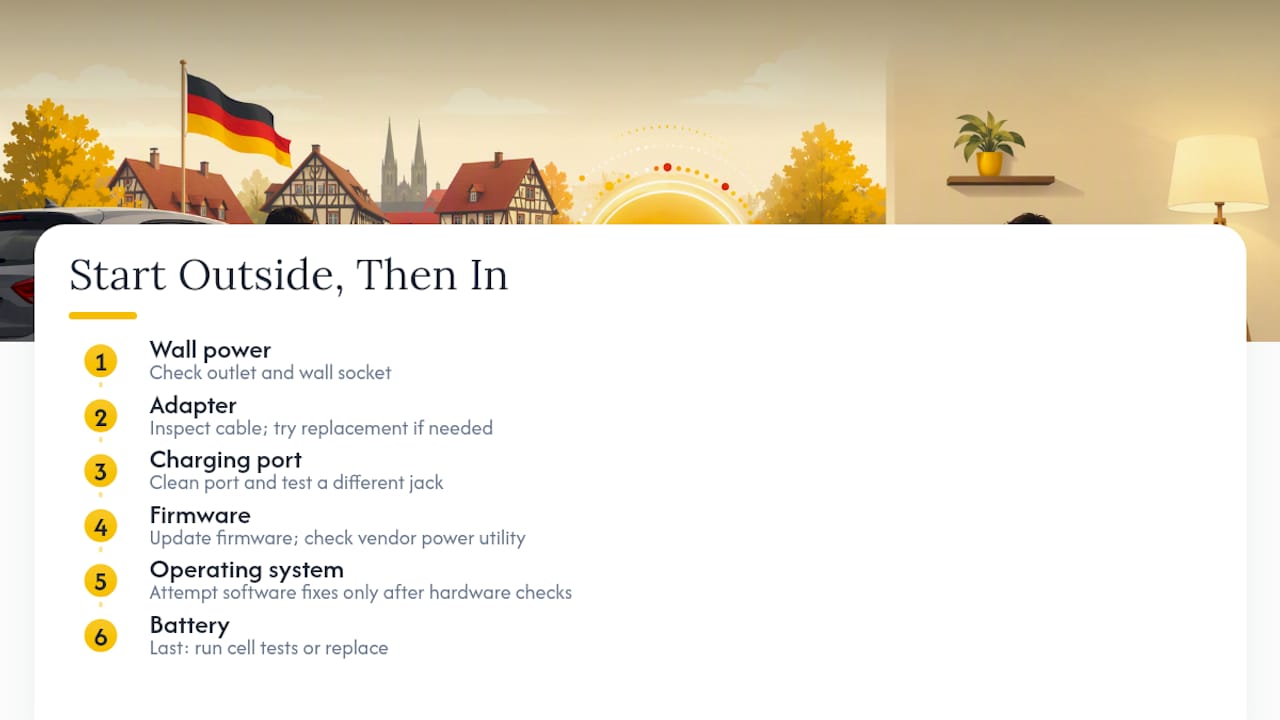
Most troubleshooting lists treat every step as equally likely, which wastes a reader's time. In practice, the order matters. Start outside the laptop and work in: wall power, then adapter, then port, then firmware, then the operating system, and only then the battery itself. Chase a software fix before ruling out the charger, and you'll reinstall drivers three times for a problem that a $20 replacement cable would have solved in thirty seconds.
The other blind spot is adaptive charging. Some OEM power management tools cap charging at 80% or hold it steady near a threshold on purpose, to extend battery lifespan. That's not a fault. It's worth checking your manufacturer's power utility before you assume anything is broken, because a "stuck" percentage is sometimes a setting, not a symptom.
Akkuplus sees the failure end of this spectrum daily: batteries that passed every software check and still needed a cell swap because the firmware-level test never lied in the first place.
— Waldemar
Get Your Laptop Charging Again With Akkuplus
If you've worked through the checklist and firmware still won't recognize the battery or reports "weak," a tested replacement beats another round of guesswork. Akkuplus specializes in exactly this: cell-level repair for packs that can be salvaged, and OEM-compatible replacement batteries for ones that can't.

Not sure yet whether the fault is the battery, the adapter, or the port? A battery tester gives you a real voltage reading in seconds, cheaper than a repair appointment and faster than another BIOS diagnostic pass. It's the same first step Akkuplus recommends before quoting any repair, because a confirmed reading means no wasted parts and no wasted shipping.
Check the diagnostic outputs you saved earlier, then request a repair quote or browse replacement battery options directly on Akkuplus. Most orders ship within days, and the repair service covers cell replacement for packs that firmware confirms are still salvageable.
Sources
- Laptop plugged in but not charging - Microsoft Q&A
- USB-IF — USB Charger / Power Delivery information
- How to fix a Windows 11 laptop that's plugged in but isn't charging — CNET
- How to Fix a Laptop That's Plugged In but Isn't Charging — HowToGeek